Upload PO Dashboard (Bulk Order Upload)

Overview
We’re excited to introduce the Upload PO Dashboard, a new feature that allows users to upload multiple Purchase Orders (POs) for a selected size group directly through an Excel file.
This enhancement simplifies the process of adding large numbers of production orders for upcoming seasons — reducing manual entry time, minimizing human error, and ensuring consistent data formatting across all factories.
🎯 Purpose
The Upload PO Dashboard enables users to:
Upload a Purchase Order file linked to a specific size group.
Automatically validate, normalize, and convert Excel data into structured order payloads ready for system insertion.
Handle bulk seasonal orders quickly and safely.
🧭 User Workflow
1. Go to Data Upload in the side menu
From the side menu, select the Data Upload page
2. Select Size Group
From the dropdown list, choose the relevant size group for your uploaded POs.
3. Download Template
Click “Download Template” to get the Excel file with predefined headers.
This ensures your data matches the system format and passes all validations.
4. Fill the Excel File
Please follow these rules carefully:
Do not rename, delete, or add new headers.
Do not add new sheets to the file.
Avoid saving the file in a different format (e.g.,
.csv → .csv.xlsx).

🧠 Important Tip:
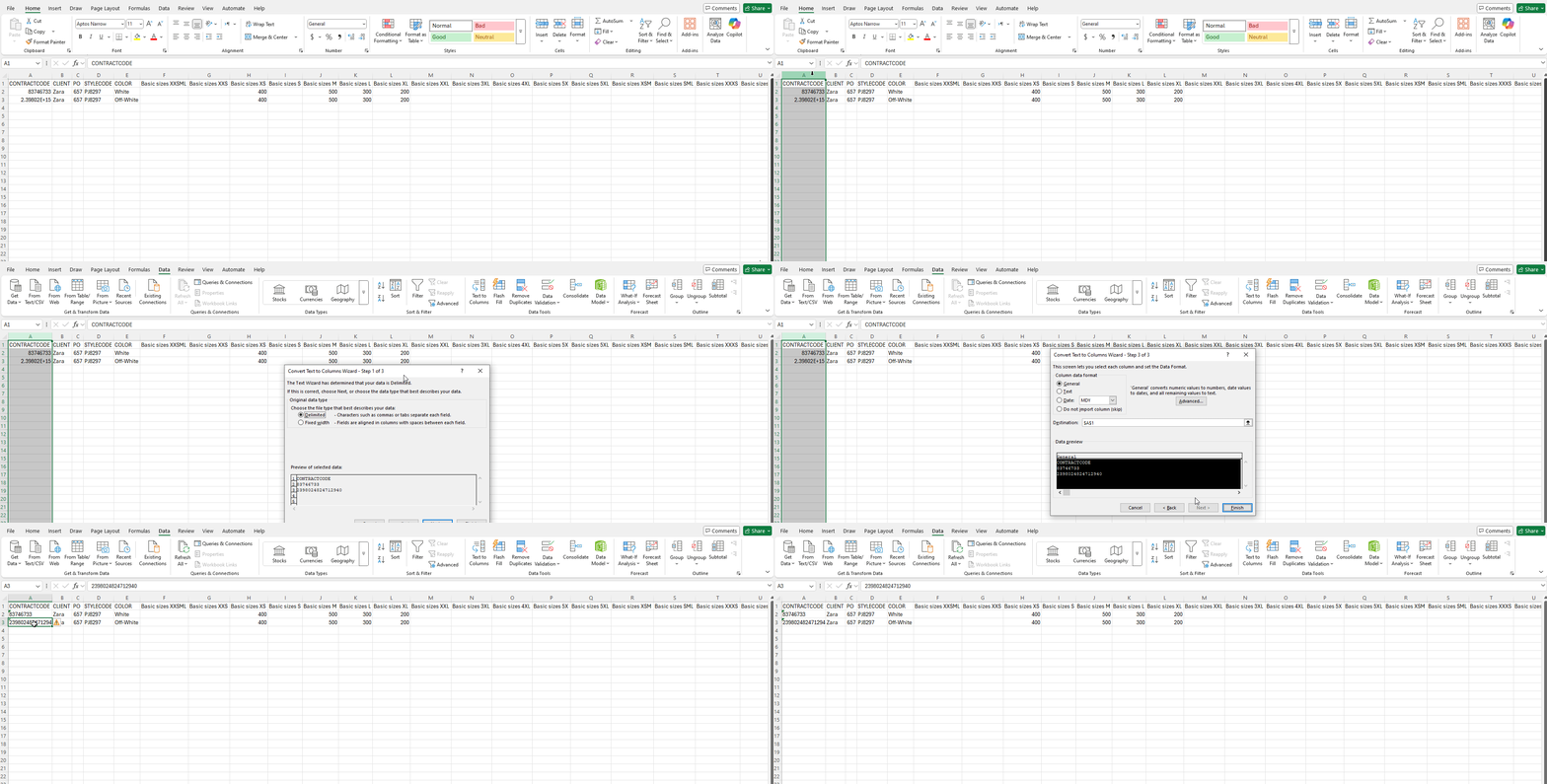
Columns such as PO, STYLECODE, and CONTRACTCODE may contain long numeric values.
To prevent Excel from converting them to scientific notation:
Select the column → Data → Text to Columns → Next → Next → Text → Finish
5. Upload File
Once the file is ready:
Upload it to the dashboard.
The system will automatically validate and transform your data into structured order payloads.
✅ Handled Cases and Validations
| Category | Handled Case | Behavior / Validation |
|---|---|---|
| Empty Fields | Missing PO, Client, or Style | ❌ Error: “PO/Client/Style can’t be empty.” |
| Client, Style, Color Validation | Client/style/color not found | Compares normalized text with existing database records |
| Inconsistent Data | Same PO but different Client, ContractCode, or StyleCode | ❌ Error: all rows in same PO must match these values |
| Duplicate/Grouped PO Handling | Multiple rows for same PO | Groups them and ensures consistency per PO |
| Quantity Validation | Quantities defined but color empty | ❌ Error: “Color can't be empty when quantities exist.” |
| Size Validation | Quantities entered for size not defined in style | ❌ Error: “Invalid size — size not defined for this style.” |
🧹 Text Normalization
Before comparison, all text values go through normalization to ensure consistency.
| Input | Database Value | Match? |
|---|---|---|
reD | Red | ✅ Yes |
red 2 | red2 | ✅ Yes |
red-2 | red2 | ✅ Yes |
redd | red | ❌ No |
Led | red2 | ❌ No |
Normalization includes:
Removing extra spaces
Removing special characters
Converting to lowercase
Sorting words alphabetically
📤 Submitting Orders
After successful validation, proceed to Submit Orders.
Each PO is submitted individually.
The system automatically uploads each valid order to the database.
The dashboard then separates successful and failed orders.
✅ Successful Orders
Orders that pass all validations will be saved successfully to the database.
❌ Failed Orders
If any order fails to upload, it will appear in a separate Failed Orders Table below.
Common Failure Reason:
Duplicate PO numbers found in the system.
🔧 Fixing Failed Orders
If your file contains failed orders:
Download the failed records.
Correct the issues (e.g., duplicate PO).
Re-upload the corrected Excel file.
The system will re-validate and process the fixed orders automatically.
💡 Summary
The Upload PO Dashboard provides an efficient way to:
Bulk upload orders with consistent formatting
Validate data automatically before submission
Save time for planning, merchandising, and production teams
This feature is especially helpful for factories planning next-season orders or handling large PO batches from clients.
Frequently Asked Questions
- Can I upload one file that contains more than one size group?
No, each file is linked to a single size group selected from the dropdown before uploading. To upload different size groups, upload a separate file for each one. - What happens if the same PO number appears more than once in the file?
The system groups all rows that share the same PO number and checks that the Client, ContractCode, and StyleCode values match across all of them before processing. - Why did my PO or STYLECODE numbers turn into scientific notation in Excel, and how can I prevent that?
Excel does this automatically with long numeric values. You can prevent it by using Text to Columns and setting the column format to Text before entering your data. - What is the most common reason an order fails to upload?
A duplicate PO number that already exists in the system is the most common reason orders fail. - Can I correct failed orders and resubmit them?
Yes, download the failed orders file, correct the issues (such as duplicate PO numbers), and re-upload the corrected file. The system will automatically re-validate and process it. - Can I rename the template's column headers or add new columns?
No, the template must be used as provided. Don't rename or delete headers, add new columns, or add extra sheets, since this could prevent your data from matching the system's format.
Do you have a question about this article?
Contact the Garment IO team. We are here to help you get the most out of every feature.