System Updates – 8 April 2026
📱1- Mobile App – Supervisor
1. Processes View
Overview
Supervisors can monitor all processes in one place and quickly identify delays or issues.
How to Use
- Select:
- Order
- Style
- Section
- The system displays all related processes
What You’ll See
- Order status
- Production progress
- Process performance
Quick Tips
- Use Search to find a process quickly
- Use Filters to focus on specific processes
Process Cards
Each card shows:
- Process name
- Operators
- Performance
- Status
🔴 Red = Bottleneck
🟢 Green = Normal
👉 Tap the card to expand
Expanded View
Displays:
- Produced vs target pieces
- Output per operator
- Takt time
Available Actions
- Assign machines
- View hourly breakdown
2. AI Assignment
Overview
AI helps assign machines automatically to save time.
How to Use
- Open assignment screen
- Click AI Suggestions
- Review results
- Confirm
Important Notes
- Does NOT overwrite manual assignments
- Works only on unassigned processes
- AI-assigned items are highlighted
💡 Tip: Always review before confirming
3. Process Assignment Screen
How to Use
- View all processes
- Assign machine + operator for each
- Add multiple machines if needed
Main Actions
- Add Machine
- Remove Machine
- Apply AI Suggestions
- Confirm Assignment
⚠️ All rows must be valid before saving
4. Machines – Orders & Processes
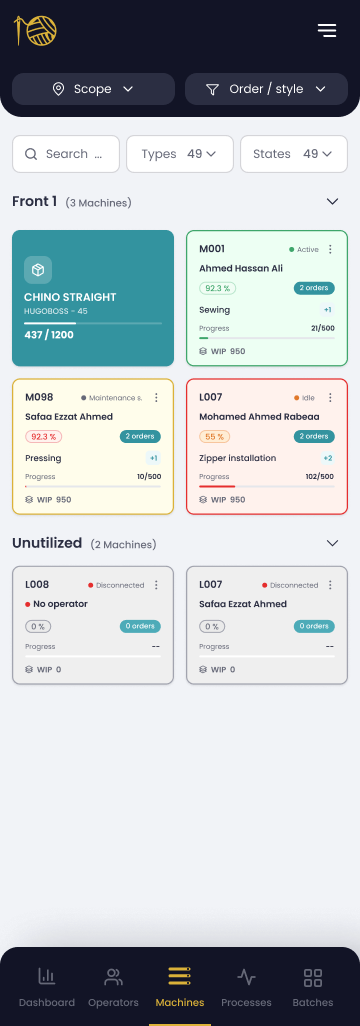
How to Use
- Select a machine
- Click Assign Production Order
- Select order
- Choose processes
- Add
Capabilities
- Assign multiple orders
- Edit processes
- Remove orders
5. Assign Operator
How to Use
- Select machine
- Click Assign Operator
- Choose operator
- Confirm
What You’ll See
- Operator efficiency
- Operator details
⚠️ Notes:
- One operator per machine
- New selection replaces previous one
6. Transfer Machine
How to Use
- Select machine
- Click Transfer Machine
- Select new section
- Confirm
⚠️ Important:
All assignments will be removed after transfer
✅ Summary
The app enables supervisors to:
- Monitor operations easily
- Identify issues quickly
- Assign work efficiently using AI
- Manage machines and operators on the go
2- AQL Report — Inspection Source Toggle
Overview
After enabling the Packing module, AQL inspection is still limited to Bundles only,
which does not support inspection after packing (Carton level).
This enhancement allows the inspector to choose the inspection stage.
What Will Change?
- Inspection Source Selection
The inspector can choose:
- Finished → Inspect Bundles (before packing)
- Packed → Inspect Cartons (after packing)
- Data Display Based on Selection
If Finished is selected:
- Show available bundles
- Table remains as is
If Packed is selected:
- Show cartons
- Display:
- Unaudited Boxes
- Accepted Boxes
- Rejected Boxes
- Default Behavior
- If no packing data → default = Finished
- If cartons exist → Packed becomes available
- Instant Refresh
When the inspector changes selection:
- The list updates immediately
- Shows only:
- Bundles OR Cartons
- Inspection Submission
On submit:
- The system saves:
- Inspection source (Finished / Packed)
- Links results to:
- Bundles or Cartons
- AQL Report
The report will include:
- Audit Number
- Inspection Time
- Inspector Name
- Production Order Number
- Style
- Lot Size:
- Bundles or Cartons
- Sample Size
-
Final Result
- Important Notes
- If no cartons exist:
- Packed option is still visible
- But shows empty state
- Cartons are grouped by Assortment
- Summary
Previously:
- Inspection = Bundles only
Now:
- Inspection can be:
- Before packing (Finished)
- After packing (Packed)
This makes the system flexible for all production stages ✅
3- Merging Orders - Production Order Packing - Set
Problem Statement
When orders are merged, the system currently does not allow packing them as a set.
This makes it difficult for users to validate:
- Quantities
- Size distribution
- Number of cartons
Solution
The system will allow users to create packing for merged orders as a set, using the existing packing screen.
If the assortment is Defined, the system will display the Color / Size matrix.
User Flow
- User goes to Production Orders
- Right-clicks on the merged order
- Selects Production Order Packing
- Packing page opens
Page Title
The page will show the merged order name:
Packing Order FSF 02/4052-9855-9854-9356
Add Assortment
User clicks:
Add Assortment
And fills:
- Prefix
- Starts From
- Net weight per piece (gm)
- Packing weight per box (gm)
Assortment Type
User selects:
1. Undefined
- Enter number of boxes only
- System calculates automatically
- No matrix displayed
2. Defined
- System displays Color / Size matrix (Set)
- User:
- Reviews the matrix
- Enters number of boxes
System calculates:
- Total pieces
- Pieces per size
- Pieces per color
Packing Calculation
The system calculates:
- Pieces per box
- Total pieces
- Pieces per size
- Pieces per color
Workstation Display
After saving, the workstation will show:
- Merged order name
- All styles inside the merged order
Important Notes
- No changes to UI layout
- Uses existing packing screen
- Only enhancement is supporting Set packing
Summary
Before:
- Merged orders could not be packed as a set
Now:
- Packing can be done correctly and accurately
- Ensures:
- Correct quantities
- Correct distribution
- Accurate cartons ✅
Update
The AI system has been improved to be faster and easier to use.
Details
- Improved system response time
- Simplified user steps
- Faster access to results
Benefits
- Saves user time
- Reduces complexity
- Enhances overall user experience
Related Articles
How To Manage Styles and processes?
<br> Every small variation in a cut needs its own settings and operations. This update makes sure managing those variations is organized and fast from the very first step. Styles | Creating and Managing Style Category Variations A ...New Release | More Accurate and Transparent Supervisor Evaluation with Clear, Measurable Criteria (15-06-2026)
To ensure a more fair and transparent evaluation process, we have updated the assessment criteria for Production, Quality, and Maintenance Supervisors with more precise and measurable standards. Discover the latest improvements. HR Module | ...New Release | Balance Your Production Line With AI Before Production Starts (30-06-2026)
<br> Line balancing used to depend on experience and personal judgment. Now the system calculates the best balance point for you based on actual data, in seconds. AI-Powered Production Line Balancing Finding the right ...New Release | Multi-Worker Login on the Same Machine for Sharper Team-Based Stage Tracking (21-06-2026)
Some stages are not performed by a single operator, but rather by an entire team. This update allows the system to measure productivity in a way that reflects how your factory actually operates. Production Management | Multi-Worker Login on the Same ...New Release | Define Style Zones Once, Link Them to Quality Inspection Automatically
<br> Accurate quality defect tracking starts one step before production: defining which parts of the style need to be monitored. This update puts that step where it belongs, inside the system. Zones | Linking Style ...