Mobile App – Supervisor
1. Processes View
Overview
Supervisors can monitor all processes in one place and quickly identify delays or issues.
How to Use
- Select:
- Order
- Style
- Section
- The system displays all related processes
What You’ll See
- Order status
- Production progress
- Process performance
Quick Tips
- Use Search to find a process quickly
- Use Filters to focus on specific processes
Process Cards
Each card shows:
- Process name
- Operators
- Performance
- Status
🔴 Red = Bottleneck
🟢 Green = Normal
👉 Tap the card to expand
Expanded View
Displays:
- Produced vs target pieces
- Output per operator
- Takt time
Available Actions
- Assign machines
- View hourly breakdown
2. AI Assignment
Overview
AI helps assign machines automatically to save time.
How to Use
- Open assignment screen
- Click AI Suggestions
- Review results
- Confirm
Important Notes
- Does NOT overwrite manual assignments
- Works only on unassigned processes
- AI-assigned items are highlighted
💡 Tip: Always review before confirming
3. Process Assignment Screen
How to Use
- View all processes
- Assign machine + operator for each
- Add multiple machines if needed
Main Actions
- Add Machine
- Remove Machine
- Apply AI Suggestions
- Confirm Assignment
⚠️ All rows must be valid before saving
4. Machines – Orders & Processes
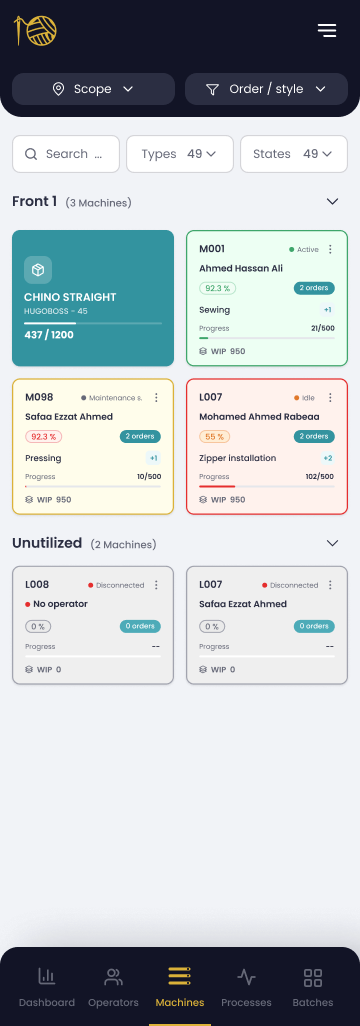
How to Use
- Select a machine
- Click Assign Production Order
- Select order
- Choose processes
- Add
Capabilities
- Assign multiple orders
- Edit processes
- Remove orders
5. Assign Operator
How to Use
- Select machine
- Click Assign Operator
- Choose operator
- Confirm
What You’ll See
- Operator efficiency
- Operator details
⚠️ Notes:
- One operator per machine
- New selection replaces previous one
6. Transfer Machine
How to Use
- Select machine
- Click Transfer Machine
- Select new section
- Confirm
⚠️ Important:
All assignments will be removed after transfer
7. 📱 Batch Details Page
This page allows the production supervisor to access detailed information about a specific batch directly from the production line 🏭, without needing to leave the line or move between web devices. The page displays the batch's progress, stages, and recorded production operations, enabling the supervisor to monitor execution, detect issues, and intervene at the right time ⚡.
🔙 Page Header and Navigation
The system displays the batch title at the top of the page (e.g., "Batch #113" 🏷️) along with a back button that returns the user to the previous screen when pressed, ensuring a smooth and quick navigation experience on mobile devices.
📋 Batch Details Section
This section displays the complete metadata of the batch, including:
- 📜 Production Order and Batch Number
- ✂️ Cutting Order and Number of Pieces
- 👕 Model, Size, and Color
- 🏷️ RFID Card
- ⏱️ Start Date/Time and Last Update
📊 Production Progress Overview
The system displays a visual summary of the batch's progress:
- ✅ Number of completed operations (e.g., 2/4)
- 📈 Completion percentage (e.g., 50%)
- 📉 Visual progress bar showing the current status
- 🖱️ Recording sources: shows the number of "beats" (machine, offline, web, or automatic)
🤖 AI Suggestions (AI Assignment)
The system provides an "AI Assignment" button that displays the number of pending operations and allows the user to start the completion process using AI suggestions to speed up operation assignment and reduce manual completion 🚀.
⛓️ List of Production Stages
Displays all production stages (such as cutting and assembly):
- 📌 Stage name and status (completed or in progress)
- 🕒 Start and end timestamps
- 🔄 Operations summary (e.g., "3 operations • 1 completed")
- 🎨 Visual distinction: different colors based on stage status for quick readability
📂 Show and Hide Stages
The user can expand any stage to view the operations within it, or collapse it to hide the details, providing high flexibility in browsing information 🔍.
⚙️ Operations Within a Stage
When the stage is displayed, the following appears:
- 🆔 Operation code and description
- 👤 Name of the assigned employee
- 🔘 Dynamic action button: "Details" 📝 for completed operations, or "Manual Run" ▶️ for incomplete ones
🛠️ Operation Actions
The system gives the supervisor the ability to intervene directly — either by viewing the details of the recorded operation or running it manually if it is not completed, without leaving the screen.
📑 Beat Details Display (Bottom Sheet)
When tapping on a specific beat, a popup window appears from the bottom containing:
- 👤 Employee name and number
- 🕒 Exact production time
- 📠 Machine number and production line
- 🔌 Beat type (e.g., machine beat)
🗑️ Beat Actions
Through the popup window, the user can:
- 🔗 Navigate to related entities (employee, machine)
- ❌ Delete the beat: after confirming the deletion, with the action being logged for later auditing
🔄 Real-Time Updates
The system updates data in real-time ⏱️, without needing to reload the page, ensuring the latest batch status is visible moment by moment.
8. Batch List Management 🔍
This page allows the production supervisor to view a comprehensive list of cutting orders and the progress of their associated batches directly from the production line 🏭, without leaving their location. The page displays the overall production status in a visual and organized manner, ensuring progress is monitored and decisions are made in a timely manner ⏱️.
🔝 Page Header and Navigation
- Main Menu: The system provides a menu ☰ for quick access.
- Bottom Navigation Bar: Highlights the active tab (Batches 📦).
- Quick Navigation: Ensures easy access to the dashboard, workers, machines, and operations.
🔍 Scope Filtering and Search
- Scope Filtering: Specify the view by factory, line, or department 🏢, while retaining the selection throughout the session.
- Filtering by Production Order: Focus on a specific production order and model 👕 to update the list instantly.
- Smart Search: Search field by batch number or RFID card 📑 with dynamic updating while typing.
- Advanced Filtering: Filter button ⚙️ for additional options (color, size, status, and date).
📊 Production Summary and Statuses
- Number of Batches and Pieces: Total summary (e.g., 155 / 2,220 🔢) that updates dynamically based on filters.
- Toggle Display Mode: Flexibility in displaying data according to monitoring needs 🔄.
- Status Summary: Smart classification of batches:
- 🛑 Rotten: Contains no production beats.
- ⏳ In Progress: Operations currently underway.
- ✨ New: Have not started yet.
- ✅ Produced: Fully completed.
✂️ Cutting Orders List
- The system displays a list of cutting orders with their identifiers (e.g., Cutting Order 35).
- 📦 Shows the number of batches and total pieces for each order.
- ↕️ Ability to expand or collapse a cutting order to show or hide the batches under it.
🔵 Visual Representation of Batches
Batches are displayed as circular visual elements:
- 🆔 Contains the batch identifier (e.g., 49, 50)
- ⭕ Circular progress indicator: shows the completion percentage for each batch
- 🎨 Color coding: different colors for quick differentiation between progress levels and statuses
9. Smart Assignment and Manual Operations 🤖
This feature allows the production supervisor to add missing production beats either manually or through smart assignment using artificial intelligence, directly from the production line via mobile, without needing to use a web device. The feature aims to ensure the accuracy of production data in real-time, and to bridge gaps resulting from scanning issues, hardware failures, or operational errors.
🔧 Manual Operation
The user can press the "Manual Operation" option on any incomplete operation to open a Bottom Sheet popup to enter missing beat data. The window displays the operation name (e.g., P001CUT – Fabric Cutting) and the required input fields, with a "Cancel" button and a "Confirm" button that remains disabled until the data is correctly completed.
👷 Data Entry
The user is required to specify the Operator and enter the Timestamp of the operation execution. The system does not allow data submission in case of missing or incorrect inputs, ensuring the accuracy and reliability of the data.
✅ Manual Operation Confirmation
Upon confirmation, the system creates a new production beat and links it to the operation, operator, and specified timestamp, to be added directly to the batch's production record.
10. Rotten Batch Management ⚠️
This feature allows the production supervisor to discover Rotten batches that have not had any production beats recorded on them within a specific time period, and group them intelligently according to the last operation performed on them, with the ability to execute quick bulk actions to address them. The feature aims to transform the management of stuck batches from a tedious manual process into an organized and fast experience that takes seconds.
📋 Rotten View
The user can select the "Rotten" status from the status summary to display only the rotten batches. This view is automatically set as default when there are rotten batches present, to ensure focus on the most important cases.
🔍 Definition of a Rotten Batch
A batch is classified as "Rotten" based on one of the following criteria:
- No recent production beat recorded (Last Beat)
- Exceeding the specified idle time limit
🗂️ Smart Grouping
Rotten batches are grouped by default according to the Last Process Done, with the ability to change the grouping criterion (Group By) to include Size or Color, which helps analyze patterns and identify the causes of stoppage.
📦 Group Display
Each group displays the following information:
- Operation name (e.g., Fabric Cutting)
- Number of batches
- Date of last beat
- Time elapsed since last activity
This helps the supervisor quickly assess the priority of intervention.
🔽 Browsing Details
The user can view any group to display the batches within it, with the ability to classify them by size or color, without losing the overall context.
☑️ Selecting Batches
The system provides checkboxes next to each batch, with the ability to select multiple batches to perform bulk actions.
🛑 Closing Batches
The system allows closing the selected batches with a single action, where they are marked as completed/closed and removed from the Rotten list, contributing to data cleanup and improving the accuracy of indicators.
⚠️ Confirmation Before Execution
The system displays a confirmation window containing a clear message with an explanation of the expected processing time, and "Confirm" and "Cancel" options, to avoid any unintended action.
⚙️ Action Execution
Upon confirmation, all selected batches are processed in one batch, with their status updated simultaneously, saving significant time compared to individual processing.
11. Switching Between Different View Modes
This feature allows the production supervisor to switch between different view modes to monitor production with the most appropriate operational unit (batches, pieces, bundles, stacks, or cutting orders). The feature aims to give the supervisor an accurate and organized view in the required unit only, preventing confusion between units and ensuring decisions are made based on clear data 💯.
🎚️ View Mode Selector
The system provides a clear toggle switch that allows seamless switching between five main modes:
- 📦 Batches
- 🧵 Pieces
- 🎁 Bundles
- 📚 Stack
- ✂️ Cutting Order
✅ Summary
The app enables supervisors to:
- Monitor operations easily
- Identify issues quickly
- Assign work efficiently using AI
- Manage machines and operators on the go
Related Articles
Discover Progress with Our New Mobile App
Introduction Ready to take control of your productivity? Our new mobile app is the key. Designed with the modern factory worker in mind, this app puts the power of real-time progress tracking right at your fingertips. Let's get started! Kickstart ...Bundling Supervisor
Welcome to the user guide designed specifically for Bundling Specialist in the garment manufacturing industry using our Garment IO Platform. This guide provides detailed instructions on how to effectively create batches, add batches to the planned ...Inline Quality Supervisor Performance report
The Inline Quality Supervisor Performance Report is a valuable tool designed to evaluate the performance of supervisors involved in inline quality inspections. This user manual will guide you through the process of using the report page to view and ...Quality Station Supervisor Performance Analysis Report
Quality Station Supervisor Performance Analysis Report The Quality Station Supervisor Performance Analysis report provides insights into the performance of quality station supervisors. It includes key metrics such as the total number of inspected ...Understanding Idle time
Definition of Idle Time it is a period of time in which an employee is ready and available, but is not doing anything productive due to circumstances that are beyond their control or abilities. The cycle of requesting an idle time The employee makes ...